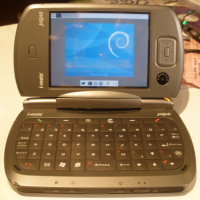
Howto install Debian GNU/Linux on HTC Universal

htc_universallinux_1_tn.jpg

What follows is my personal experince in installing GNU/Linux on a HTC Universal pocketpc. I used Titchy Linux, a Debian Lenny based distribution with special drivers/config for HTC Universal. But the heart is Debian, and full support to Debian repois is grated.

Actually the only not working hardware is:
-camera.
-wifi sometimes works, sometimes doesn’t, the driver is unstable.

First of all, I splitted a 1Gb SD memory stick into two partitions: the first with 32Mb of size and FAT32 filesystem, the second an ext2 filesystem in all the remaining space. In this way, I can port all my config in another HTC (launcher and Linux installation) and show the magic of Linux to all of my Universal-friends. If you need some shared data on memory card, between Windows Mobile and Linux, simply make the FAT32 partition bigger and use it for storing these data.

I followed the steps in Titchy wiki for Universal installation and I copied haret.exe, zImage and startup.txt in the FAT32 memory stick partition. After 30 minutes, thanks to Titchy image, my HTC Universal booted with Linux. Included in the image a very nice sms /calling graphical interface, access to it pressing the green phone key. That’s all, have fun!

For alternative install (no xfce file manager, encripted home partition and lot of tricks) there is another great resource, with lot of useful post-configurations. Be sure to read the Titchy wiki for UMTS and Bluetooth access to the Internet.


RAM CONSIDERATION
: The HTC Universal has only 64 Mb of ram, and the base system, with
textual console, uses 12 Mb of it. XFCE installed by Titchy is nice, but the ram
consumption arrive to 40 Mb and the system responsivity is very bad.
With IceVM, instead, the totat used ram is 24 Mb and the system
responsivity is still good.

And now, general tip’s tricks.

Continue reading “Howto install Debian GNU/Linux on HTC Universal”

Java: Image conversion to byte[] array

Convertire un byte array (byte[]) in un oggetto Image e’ molto semplice:

	private Image convertToImage(byte[] source){
	Image objImage = new Image(source);
	return objImage;
}

Il contrario invece, convertire un oggetto Image in un byte[] non e’ proprio cosi’ immediaito. Ecco lo snippet che uso, che carica direttamente da una URL un’immagine e la memorizza in un byte[]. comodo magari da usare successivamente all’interno degli elementi di una jList.

private byte[] loadImageFromURL(String strUrl){
	int intPos;
	String strFileExt;

	//guess file extension
	intPos = strUrl.lastIndexOf(".");
	if (intPos >= 0){
		strFileExt = strUrl.substring(intPos + 1);
	}else{
		//assign default jpg extension
		strFileExt = "jpg";
	}

	try {
		//load the image from the Internet
		ImageIcon objImageIcon = new ImageIcon(new URL(strUrl));

		//wait the loading of the image
		MediaTracker objMediaTracker = new MediaTracker(lstContacts);
		objMediaTracker.addImage(objImageIcon.getImage(), 0);
		objMediaTracker.waitForID(0, 5000);

		//convert the image
		BufferedImage objBI = new BufferedImage(objImageIcon.getIconWidth(), objImageIcon.getIconHeight(), BufferedImage.TYPE_INT_ARGB);
		Graphics2D g2 = objBI.createGraphics();
		g2.drawImage(objImageIcon.getImage(), 0, 0, null);
		ByteArrayOutputStream baos = new ByteArrayOutputStream();
		ImageIO.write(objBI, strFileExt, baos);

		return baos.toByteArray();

	} catch (MalformedURLException ex) {
		Logger.getLogger(MainForm.class.getName()).log(Level.SEVERE, null, ex);
		return null;
	} catch (IOException ex) {
		Logger.getLogger(MainForm.class.getName()).log(Level.SEVERE, null, ex);
		return null;
	} catch (InterruptedException ex) {
		Logger.getLogger(MainForm.class.getName()).log(Level.SEVERE, null, ex);
		return null;
	}
}

Continue reading “Java: Image conversion to byte[] array”

Stampare un’immagine su piu’ pagine

blockposter.gif Se avete l’esigenza di stampare un’unica immagine su piu’ pagine, ecco qualche link utile:

Block Posters: questo sito permette di caricare un’immagine JPG grande fino ad 1 Mb, scegliere il formato della carta ed orientamento (A4 o US Letter, verticale o orizzontale) ed indicare il numero di fogli su cui suddividere la stampa. Dopo l’elaborazione, si otterra’ un PDF con l’immagine divisa, fetta dopo fetta, nelle pagine richieste.

The Rasterbator: meccanismo di funzionamento molto simile al primo, con la differenza che l’immagine generata e’ una rasterizzazione dell’immagine di partenza. In pratica l’immagine originale viene trasformata in tanti piccoli punti, che visti da vicino non hanno senso, ma quando si osservano da lontano in una visione d’insieme, ritrovano il loro significato originario. Ideale quindi per stampare grandi poster (anche qualche metro di lato) da appendere su grandi muri.

PRTLGPCT.EXE: Print a Large Bitmap on Multiple Pages: se siete dei programmatori, questo articolo dalla KB della Microsoft mostra come realizzare con poche righe di codice un programma in Visual Basic 6 (ma facilmente riadattabile anche al .NET) per stampare un’immagine suddivisa in piu’ pagine.

Continue reading “Stampare un’immagine su piu’ pagine”

La mia tesi sui cartoni animati

Macerata, 18 Marzo 2008: un giorno speciale, infatti sono diventato dottore in scienze della comunicazione (corso triennale). Eccomi mentre discuto della mia tesi sui cartoni animati con la commissione di laurea:

Per la cronaca, la commissione mi ha dato un bel 108 (102+6). Considerando che non ho mai badato al voto degli esami (e ci mancava che, lavorando, mi preoccupassi anche di questo), direi che sono proprio soddisfatto. Sette anni di sforzi (e chi se le dimentica le “clausure mensili” pre-esame), finalmente conclusi. Ora spero solo che un domani questa laurea mi servira’ a qualcosa, anche se, ad essere sincero, a livello personale mi ha giĂ  aiutato parecchio. In quanto persone, siamo inclini a condurre una vita sociale, ma farlo in maniera competente non e’ una nostra abilita’ innata.

Se siete curiosi di vedere le slide che ho proiettato, sono queste (PDF, OpenDocument).

E finalmente, per i piĂ¹ curiosi, la tesi. La rilascio sotto licenza creative commons, fatene buon uso (PDFOpenDocument).

My thesis discussion on “Cartoons and cultural models”

Macerata, 18 March 2008. I discussed my thesis. On cartoons!

Slide: PDFOpenDocument
Thesis: PDFOpenDocument (Creative Commons licence)

E finalmente, per i piĂ¹ curiosi, la tesi. La rilascio sotto licenza creative commons, fatene buon uso (PDFOpenDocument).

AS/400 tn5250 terminal on Linux

as400term-xt5250_tn
There are lot of ways for accessing to the AS400 functionalities (today know as iSeries, a wide-used “mainframe” produced by IBM) and one of the most important is, surely, the tn5250 terminal emulation.

Under Gnu/Linux, we can do this with different software, and each one has is pros and cons.

Personally i used the tn5250 software for simply terminal emulation, but also the IBM iSeries Access for Linux can be used for most advanced functions.

tn5250 – Linux tn5250 emulator

Under Debian and Debial-like distros (like Kubuntu, that i use), first step is install the tn5250 software

sudo apt-get install tn5250

or use your preferred package manager (synaptic, kpackage, others)

After this, you are virtually ready to connect to your AS400. Just run the following command (172.16.1.1 is the IP address of my AS400):

xt5250 172.16.1.1

The software, like the tn5250 protocol itself, has lot of options, but for my needs the most important are:

  • map: set the translation table between ASCII and EBCDIC. In my case, i use an italian translation map, corresponding to the code 280. For a list of all translation maps, run this command: man tn5250rc and search for the Translation Maps section
  • env.DEVNAME: set the device name for the AS/400 to assign to the 5250 session. In my case, this name is DSP002A
  • env.TERM: Set the terminal model name for the emulation session to use. In my case is IBM-3477-FC (80×132 color mode). For a list of all terminal models, run the same command of above, man tn5250rc, and search for Display Types section
  • font_80: the font used when terminal is in 80 column mode
  • font_132: the font used when terminal is in 132 column mode

Ok, with this parameters, my launch string became:

/usr/bin/xt5250 map=280 env.DEVNAME=DSP002A env.TERM=IBM-3477-FC font_80=10×20 font_132=10×20 172.16.1.1

I put this string in a new menu entries, using the icon from the file /usr/share/pixmaps/tn5250-48×48.png

Kde menu with tn5250 shortcut

Joke is done :)

Little trick: with Ctrl + Right click over the tn5250 window, you can access to the “VT Fonts” menu, and with Ctrl + Left click you can access to the “Main Options” menu.

You can also create a config file with all the options and then launch xt5250 <filename>. Search under the tn5250rc manual page for more information and take a look to this and this useful topic

{mxc}