In the following talk (in Italian), I explained the basic of OpenClaw: what it is, how to configure your first personal agent, skills, extensions, security best practices and some examples of my agents garden in Discord.
(Codemotion Rome 2026, Rome)
Alfredo Morresi's digital harbor
In the following talk (in Italian), I explained the basic of OpenClaw: what it is, how to configure your first personal agent, skills, extensions, security best practices and some examples of my agents garden in Discord.
(Codemotion Rome 2026, Rome)
I love working in the terminal. I’m not a shortcut wizard, I barely remember a few, but I still love working in the terminal. Here is the list of apps and configurations I made over time to improve my shell.
Need to read the content of a file? Bat helps with with syntax highlighting, line numbers, git integration, and many other options.
Reading log files is part of every dev life, but why not making the task simpler with syntax highlighting? Tailspin to the rescue. docker logs -f <containter_name> | tspin
find is a powerful tool, but the syntax is quite complex for simple search tasks. fd makes search simpler as typing fd specs to find all files and directories containing the word specs in current dir and subdirs, case insensitive. Or fd -e md to search for all the files ending with a .md in current dir and subdirs.
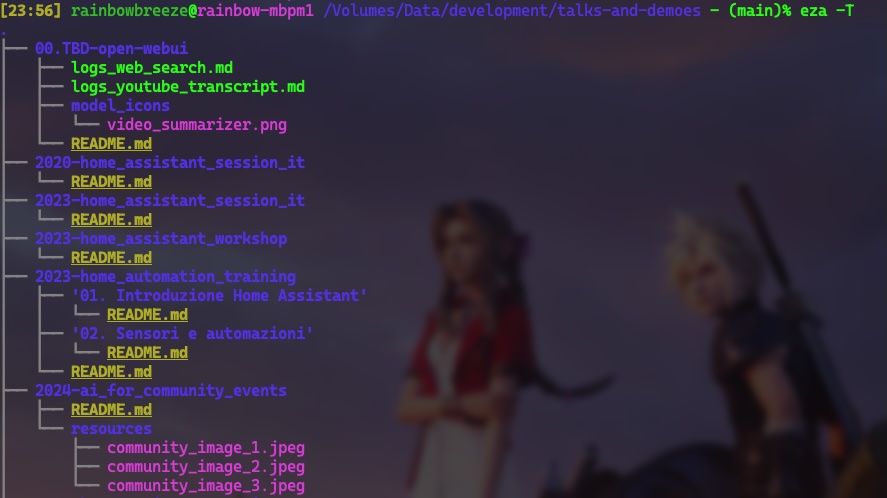
eza replaces ls with syntax highlighting and git status out of the box, the possibility to see files and dirs and a tree format, order files by different attributes (name is the default, but then size, extension, etc). eza -T generates a nice tree view of all files and subdirs in the current path.

With a simple alias l="eza -l" and alias lt="eza -lT" navigating the filesystem will be much easier!
Wondering how the disk space is used? dust replaces du and make the discovery very easy. For example, dust -z 1G searches for all files and folder better than 1Gb in the current dir.
For a file-system level overview, duf
ncdu offers interactive browsing of directories, and the possibility to remove files and dirs on-the-fly.
The integration of the Model Context Protocol (MCP) servers within Open WebUI significantly extends its functionality, by allowing access to external capabilities. Open WebUI both leverage native support for MCP server offering the HTTP streamable format, and usage of the mcpo (MCP-to-OpenAPI proxy server) for broader compatibility.
This article explains how to configure MPCO to leverage all kinds of MCP servers: local via sdio, or remote via SSE (Server-Sent Events), or Streamable HTTP. While this other article explains native support of HTTP streamable MCP servers in Open WebUI (added at the end of Sept 2025).
MCP is an open standard that functions as a universal communication bridge, connecting LLMs to external tools and data sources. This protocol enables AI assistants to access real-time information and perform tasks on a variety of different areas.
MCP servers communicate with clients (the LLMs) using three primary channels: stdio (standard input/output), SSE (Server-Sent Events), or Streamable HTTP.
Because of the core architecture of Open WebUI, which is a web-based, multi-tenant environment, not a local desktop process, and because long-lived stdio or SSE connections are difficult to maintain securely across users and sessions, Open WebUI team decided to create mcpo (MCP-to-OpenAPI proxy server) – an open-source proxy that translates stdio, SSE-based or streamable HTTP MCP servers into OpenAPI-compatible endpoints.
In addition, mcpo automatically discovers MCP tools dynamically, generates REST endpoints, and creates interactive, human-readable OpenAPI documentation accessible at http://localhost:8000/docs.
mcpo can run MCP servers written as npm packages via npx, python packages via uvx, and can also wrap calls to SSE or Streamable HTTP MCP servers.
When launched from the command line, it’s possible to specify both an MCP server mcpo will run, or a configuration file which defines the MCP servers it will manage, their exposed names, etc. The project page has a lot examples on how to configure the different servers.
This article will use docker compose to launch mcpo, and a configuration file to define the MCP servers to expose. A simple docker-compose.yaml file follows:
services:
mcpo:
container_name: mcpo
image: ghcr.io/open-webui/mcpo:main
restart: unless-stopped
volumes:
# Map your local config directory to /app/config inside MCPO container
- /Volumes/Data/development/open-webui/volumes/mcpo:/app/config
ports:
- 8000:8000
# Command to launch MCPO using the mounted config file, with hot-reload enabled
command: --config /app/config/config.json --hot-reload
In this example, the configuration file is created under /Volumes/Data/development/open-webui/volumes/mcpo/config.json on the host running Docker, which maps to /app/config/config.json in the command line passed to mcpo.
Four MCP servers are exposed via mcpo using the following config file:
{
"mcpServers": {
"time": {
"command": "uvx",
"args": ["mcp-server-time", "--local-timezone=America/New_York"]
},
"youtube-transcript": {
"command": "uvx",
"args": [
"--from",
"git+https://github.com/jkawamoto/mcp-youtube-transcript",
"mcp-youtube-transcript"
]
},
"open-meteo": {
"command": "npx",
"args": ["open-meteo-mcp-server"]
}
"coingecko": {
"type": "streamable-http",
"url": "https://mcp.api.coingecko.com/mcp"
}
}
time is a MCP server offering time information, created using a python packageyoutube-transcript is another python MCP server to transcribe YouTube videos, created directly from its github repo.open-meteo is a nodejs MCP server offering weather forecasts via Open-Meteo APIs.coingecko is the same CoinGecko streamable HTTP MCP server used in the other article about MCP and Open WebUI, this time exposed via mcpo.
Easy to spot, the configurations to add to the config.json file uses the same format of Gemini CLI, Claude, Visual Studio, or other MCP server clients.
Once changed the configuration, it’s possible to check if they’re correct looking at the mcpo container logs, using docker logs -f mcpo command. For example:
2025-10-26 15:12:07,498 - INFO - Config file modified: /app/config/config.json
2025-10-26 15:12:08,011 - INFO - Adding servers: ['coingecko_mcp_streamable_http']
2025-10-26 15:12:10,158 - INFO - HTTP Request: POST https://mcp.api.coingecko.com/mcp "HTTP/1.1 200 OK"
2025-10-26 15:12:10,159 - INFO - Received session ID: 7a3c7019bf4ec1aaa7b213d017cd968ca1c609ee6bb5612622a0d4ad41b8579d
2025-10-26 15:12:10,162 - INFO - Negotiated protocol version: 2025-06-18
2025-10-26 15:12:10,736 - INFO - HTTP Request: POST https://mcp.api.coingecko.com/mcp "HTTP/1.1 202 Accepted"
2025-10-26 15:12:10,806 - INFO - HTTP Request: GET https://mcp.api.coingecko.com/mcp "HTTP/1.1 404 Not Found"
2025-10-26 15:12:11,204 - INFO - HTTP Request: POST https://mcp.api.coingecko.com/mcp "HTTP/1.1 200 OK"
2025-10-26 15:12:12,038 - INFO - Successfully connected to new server: 'coingecko'
2025-10-26 15:12:12,038 - INFO - Config reload completed successfully
Otherwise, an ERROR log instance will be present.
The list of the MCP servers exposed, and their docs (what the LLM sees) can be browsed at http://localhost:8000/docs.
There are two ways to connect to mcpo in Open WebUI: via a User Tool Server in the User Settings, and via a Global Tool Server in the Admin Settings.
host.docker.internal). It’s also possible to access to a mcpo running on another server / remotely, and reachable by the Open WebUI host machines.Of course, distinctions from these two options fade away if both Open WebUI and mcpo are launched on the same local machine, used to connect to Open WebUI. But it’s important to keep this distinction in mind.
Each server exposed by mcpo has to be configured separately.
For configuring Global Tool Servers, using the time server as example:
http://host.docker.internal:8000/time
http://mcpo:8000/time can be used, assuming the mcpo image has the name mcpo, like in the docker compose file used above. time_mcp_mcpo.
Time MCP via mcpo.
Get the current time and dateFor configuring User Tools Servers, instead:
http://localhost:8000/time
localhost because the mcpo server is accessible from the browser user session using localhost, or 127.0.0.1 address. http://host.docker.internal:8000/time or http://mcpo:8000/time won’t work, as they refer to docker-network specific addresses, which are not available in the browser user session of the local machine The time MCP server is now available inside Open WebUI, with two different names: Time MCP via mcpo if configured as Global Tool Server, or mcp-time if configured as User Tool Server.
To be sure the MCP call is considered, and then executed, by the LLM, ensure the model has tools support, and that Function Calling parameter set to Native in the Advanced Params section of the model configuration.
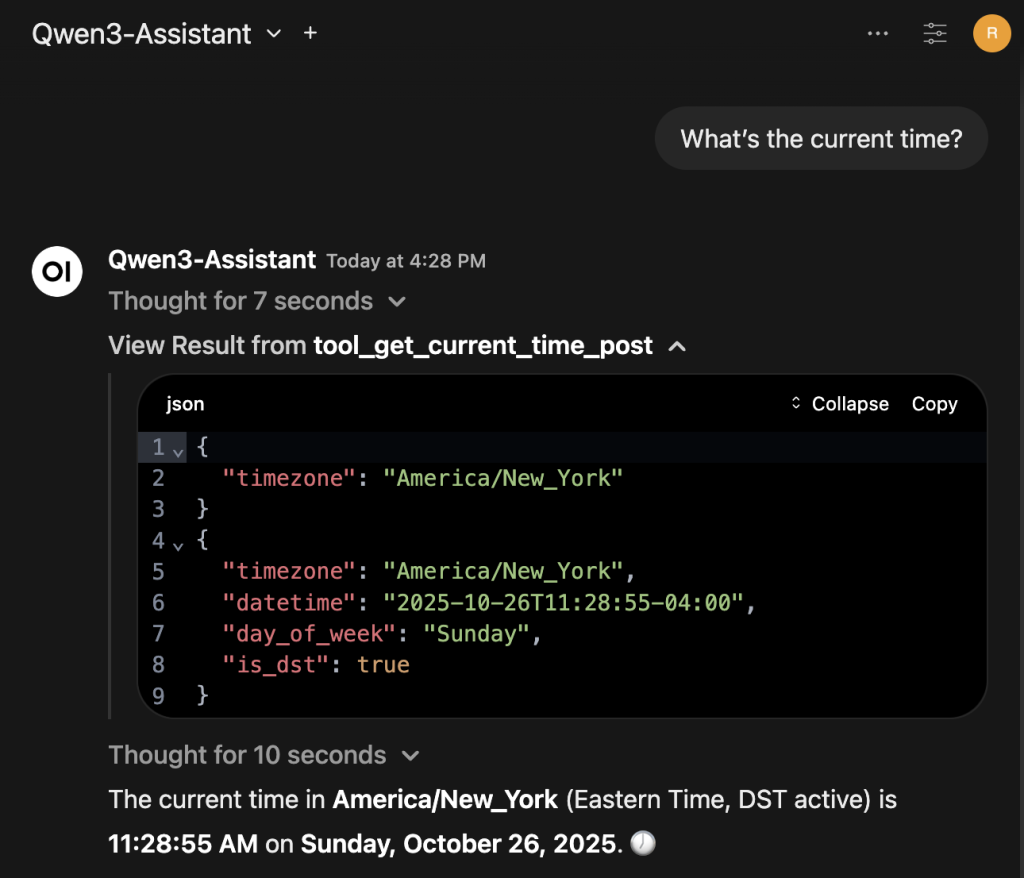
Here an example to create a specialized agent to return the current time, using the MCP server.
Qwen3-Assistant.qwen3:8b.
Return the current time.Save and start chatting with the agent, for example asking What's the current time?. Here what the result could be, where the result of the time MCP is expanded for additional clarity:

The integration of the Model Context Protocol (MCP) servers within Open WebUI significantly extends its functionality, by allowing access to external capabilities. Open WebUI both leverage native support for MCP server offering the HTTP streamable format, and usage of the mcpo (MCP-to-OpenAPI proxy server) for broader compatibility.
This article explains how to configure Open WebUI’s native support for remove MCP servers offering HTTP streamable capabilities. For a guide on how to configure MCPO to leverage all kinds of MCP servers: local via sdio, or remote via SSE (Server-Sent Events), or Streamable HTTP, please refer to this article.
MCP is an open standard that functions as a universal communication bridge, connecting LLMs to external tools and data sources. This protocol enables AI assistants to access real-time information and perform tasks on a variety of different areas.
MCP servers communicate with clients (the LLMs) using three primary channels: stdio (standard input/output), SSE (Server-Sent Events), or Streamable HTTP.
In v0.6.31 Open WebUI added MCP (streamable HTTP) server support, alongside existing OpenAPI server integration. This allows to connect directly to an MCP server that exposes its functionality over a streaming HTTP endpoint. It supports Bearer token, session and OAuth for authentication, if necessary (doc page, but very basic so far).
To find MCP servers, the “Remote MCP Servers” page of Awesome MCP Servers is a good starting point. Looking at all the servers with http support, let’s user the one from CoinGecko.
Once logged in Open WebUI:
https://mcp.api.coingecko.com/mcpcoingecko_mcp_http.
CoinGecko MCP via http.
To be sure the MCP call is considered, and then executed, by the LLM, ensure the model has tools support, and that Function Calling parameter set to Native in the Advanced Params section of the model configuration.
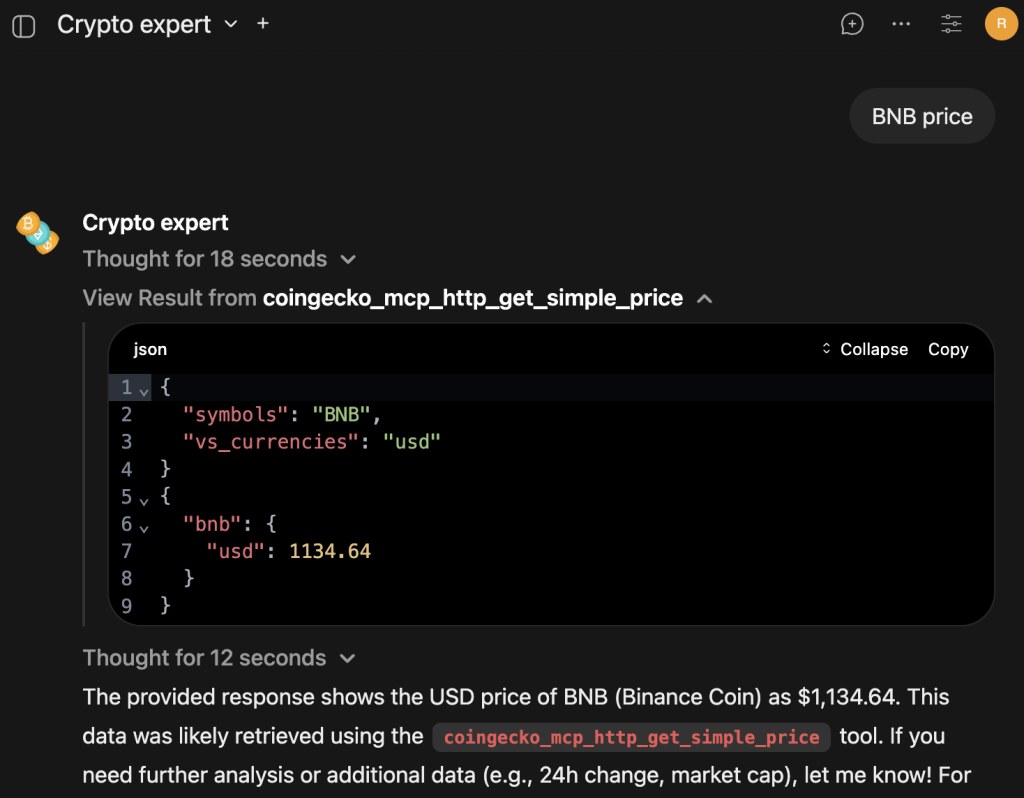
Here an example to create a specialized agent to return values of crypto assets:
Crypto expert.qwen3:8b.
Return value of crypto assets.You are a cryptocurrency price lookup agent. When the user specifies one or more cryptocurrency names (e.g., "bitcoin", "ethereum", "BTC", "CRO"), output ONLY the current market price in USD for each, formatted as: [Name]: $[price]. Do not add explanations, context, errors, or any text beyond this. If a crypto is unrecognized, output: [Name]: Not found.Save and start chatting with the agent, for example asking BNB price. Here what the result could be, where the result of the CoinGecko MCP is expanded for additional clarity:

If the MCP server doesn’t support streamable HTTP, it’s possible to use mcpo to access them.
[…] It was during that period that I met Alfredo Morresi, who even then was the community manager for developers. Ensoul was developing a prototype of a webVR viewer, and Alfredo immediately stood out for his kindness and attentiveness. Among other things, we were fortunate to receive an early physical prototype of the Google Pixel and an invitation to the Google VR Workshop in London. […]
Link to the original post, and thanks Fulvio for the interview!
In the following talk (in Italian), I explained the basics concepts behind Home Assistant, the number one choice to manage home automation with 3 core principles in mind: privacy, choice and sustainability.
(MOCA 2024, Pescara)