Google prohibits third-party software (such as OpenCode, Hermes Agent, OpenClaw, etc), from using consumer OAuth tokens to access Gemini API, making subscription services like Google AI Pro and Ultra non usable with them. To safely use Gemini models in third-party software, there are two legitimate options:
- Google AI Studio (Pay-as-you-go): Add prepaid billing (min $10) at Google AI Studio and generate a commercial Gemini API key.
- GCP Service Account via Gemini Enterprise Agent Platform provider (former Vertex AI): Call the Gemini API via Google Cloud’s AI platform. This gives isolated billing, regional data control, postponed billing, and other benefits.
Here are the steps to create a GCP service account (a non-human identity that owns a downloadable JSON key), and how to configure OpenCode to use it to access Gemini models. Bonus points: the same approach works also in Hermes Agent, OpenClaw and other tools, and the Agent Platform provider makes available many more model to use, not only the ones from Google.
Setup a GCP Project
Step A: Create a GCP Project & enable billing
- Open Google Cloud Console
- Create a project named
opencode-dev - Go to Billing and create a Billing Account and link the project to it. Verify if the proejct is linked
- There is no need to create a new project. An existing project, with a working billing account, can also be used to create the required Service Account.
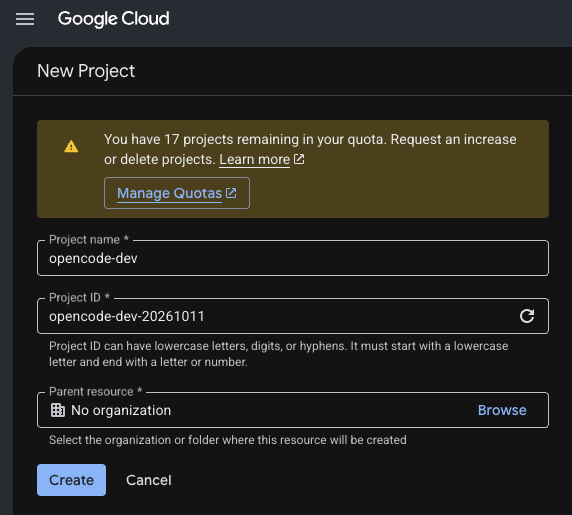
Step B: Enable the Agent Platform API for the project
- In the Google Cloud Console, ensure the project
opencode-devis selected in the upper left selector - Go to APIs & Services > Enabled APIs & Services (direct link)
- Click + Enable APIs and services.
- Search for Agent Platform API (direct link) and click Enable.
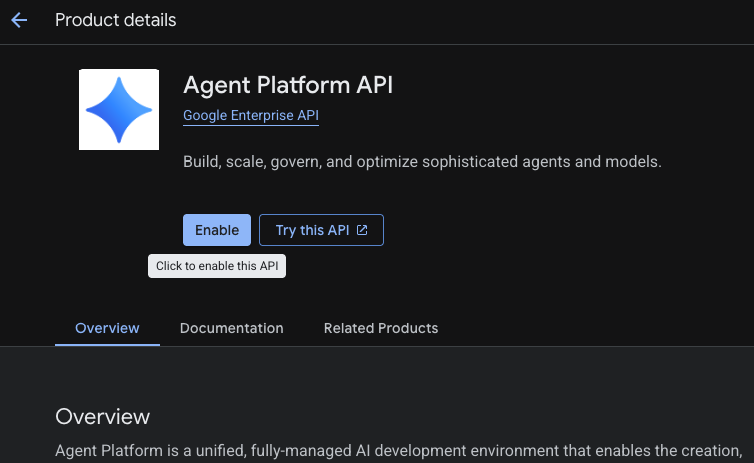
Step C: Create the Service Account
- Go to IAM & Admin > Service Accounts.
- Click + Create Service Account.
- Set the service account name to
opencode-laptopand description toUse OpenCode on my dev machine - Click Create and continue.
- In the Grant this service account access to project section, use the filter box to search for
aiplatform.user. - Select the role Agent Platform User (formerly Vertex AI User,
roles/aiplatform.user). - Click Continue.
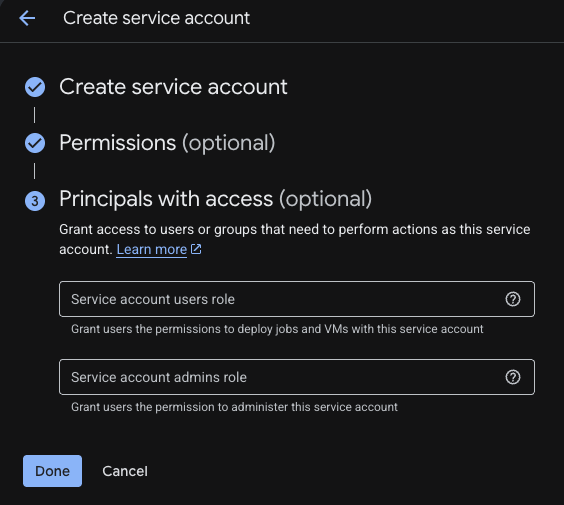
- In the next step (Grant users access to this service account / Principals with access), leave all fields empty.
- Click Done to finish creating the service account.
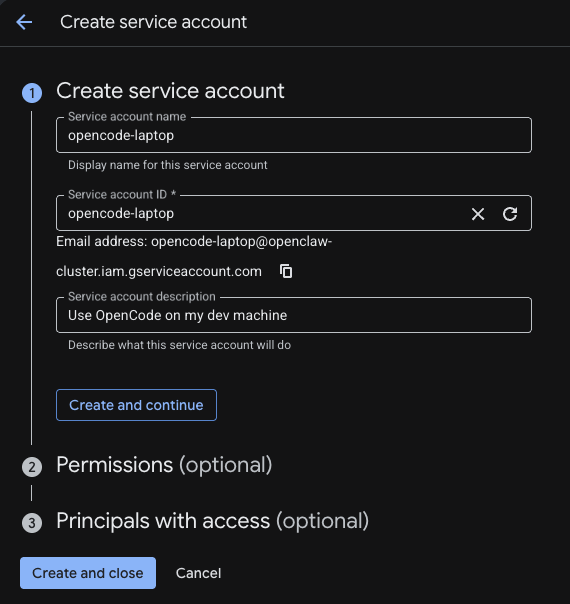
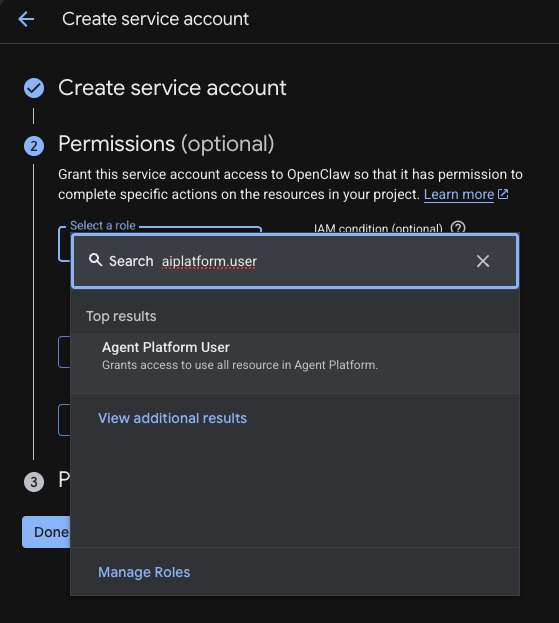
Step C: Create and download the Service Account JSON file
- Go to IAM & Admin > Service Accounts.
- From the list of Service Accounts, click on
opencode-laptop, and then open the Keys tab. - Click Add Key > Create new key > select JSON > Create.
- Save the file to
~/.config/opencode/opencode-devmachine.json - For additional security, restrict file permissions to 600 (only owner has read+write permission)
chmod 600 ~/.config/opencode/opencode-devmachine.jsonConfigure OpenCode
The instructions to configure OpenCode to use a Gemini Enterprise Agent Platform are under the “Vertex AI” section of the providers page.
Three environmental variables (2 mandatory, 1 optional) are required:
- GOOGLE_APPLICATION_CREDENTIALS: stores the path of the Service Account JSON file
- GOOGLE_CLOUD_PROJECT: store the cloud project for the service account
- VERTEX_LOCATION (optional): The region for Vertex AI. The default is
global
Set the variables with inline command execution
The easiest way is to launch OpenCode while setting the environmental variables:
GOOGLE_APPLICATION_CREDENTIALS=~/.config/opencode/opencode-devmachine.json GOOGLE_CLOUD_PROJECT=opencode-dev opencodeRemember to close the OpenCode Server before passing the environmental vars from the command line, otherwise the existing server won’t pick them up. It fires up the first time OpenCode is launched after a system reboot, and then remains in memory.
Set the variables permanently in the shell Environment
For Zsh (macOS):
cat << 'EOF' >> ~/.zshrc

export GOOGLE_APPLICATION_CREDENTIALS="$HOME/.config/opencode/opencode-devmachine.json"
export GOOGLE_CLOUD_PROJECT="opencode-dev"
EOF
source ~/.zshrc
For Bash (Linux):
cat << 'EOF' >> ~/.bashrc

export GOOGLE_APPLICATION_CREDENTIALS="$HOME/.config/opencode/opencode-devmachine.json"
export GOOGLE_CLOUD_PROJECT="opencode-dev"
EOF
source ~/.bashrc
Model selection in OpenCode
- Once OpenCode is running, type
/modelsand look for Gemini models (e.g.google-vertex/gemini-3.8-flash)
When OpenCode is NOT configured to use Gemini models, the command /models returns only the free models available by default.
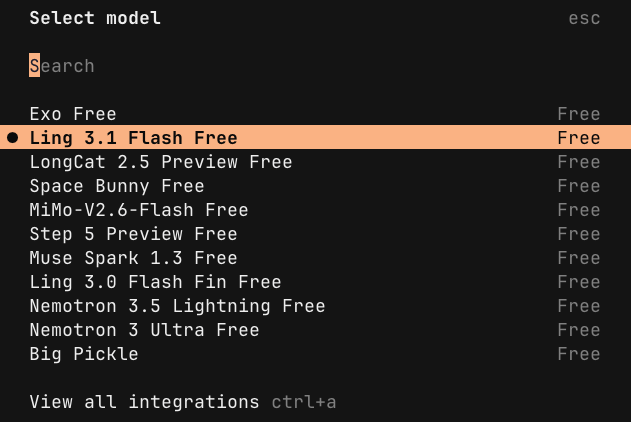
Once Google Vertex AI provide is configured, Gemini models (and other models available on Google Model Garden) are added to the list:
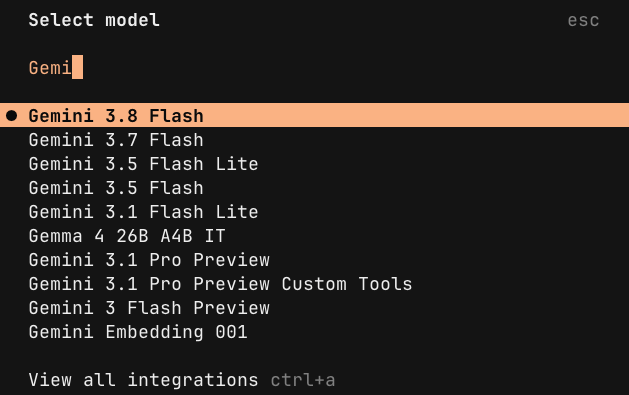
Select one Gemini model and start using it.
